
Leads
Construction leads that move into the job.
Add or import an inquiry, keep follow-up and visit details together, then turn a won lead into a project.
How it works
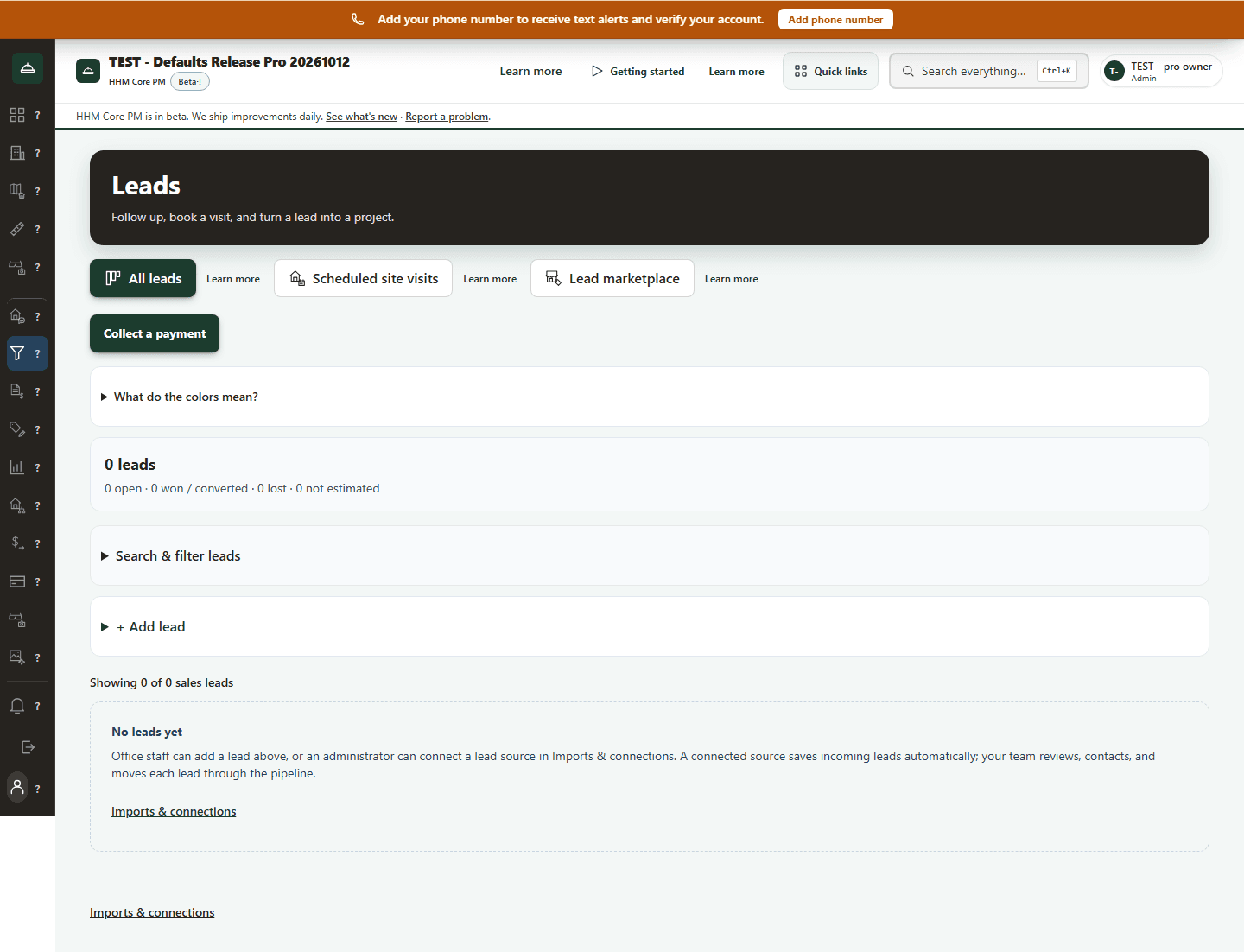
Open Leads to add an inquiry or review incoming leads from your connected sources.
Save the inquiry. Add the customer and job details in Leads.
Set the next action. Set the sales step, assignment and follow-up date, then schedule the site visit.
Review the follow-up. Review the recipient, message and customer permission before contacting them.
Start the project. Mark the lead Won, then choose Convert to project to carry the saved details forward.
Start with the inquiry
Add a lead with the customer and job details, or upload a lead CSV. Keep the source, saved messages and site-visit details with the inquiry.
Keep the next step clear
Use the lead list to see open, won, converted, and lost leads. Set the sales step, assign the lead, record a follow-up date, and schedule the site visit from the lead.
Prepare the site visit
Save the visit time, address, and notes with the lead. Your office can open the lead workspace after a visit is scheduled, so the project details are ready for the estimate and job planning work.
Review the follow-up before it goes out
Prepare an email or text from the lead. Review the recipient and message first, and record the customer permission for the follow-up. Messages and available customer history stay with the lead.
Turn a won lead into a project
Mark the lead Won, then convert it to a project. The customer, address, source, and saved notes carry forward so your team starts the job with the information it already has.
Your lead sources stay in one place
Office staff can add leads directly. Company administrators can upload a lead CSV. Review each inquiry and move it through the pipeline.
Review the terms before accepting
The program terms show collection timing and any deposit share for a job HHM itself contracts. Read the offer and your responsibilities before you accept it. Other contractors can work in your service area.
Lead questions
Can I add a lead myself?
Yes. Office staff can add a lead from Leads.
Can I schedule a site visit?
Yes. Save the visit time, address, and notes on the lead.
What happens after the customer accepts?
Mark the lead Won, then convert it to a project. The saved customer and lead details carry forward.
Can I bring in leads from another source?
An administrator can upload a lead CSV. Review the imported customer and job details before following up.